Failing to run a server on 3 different phones
Feb 13th, 2026
1207 words (~6 minutes)
I’ve had this article on how to turn an old phone into a web server bookmarked for months, and finally got around to actually trying it. I, for some strange reason, have a series of old phones in my closet. You can sometimes trade in old phones for a credit when getting a new phone, but I end up keeping my phones long enough that the credit is $0, lol. This is the exact sort of thing I’ve been waiting to use my old phones for.
While the post itself is simple, trying to actually do any of this is kinda ridiculous, mostly due to battery and unlocking issues. I couldn’t even get past the first section of that post. All of my attempts failed, so I’ll recap in order of simplest failure, to most complex.
The Moto X
My Moto X, already a budget phone when I got it in late 2013, is now 13 years old! Unfortunately, that means it’s completely borked. I plug it in to charge, the change screen comes up with 0%, it charges for about a minute, shows the Moto boot screen, vibrates, then dies. I assume that it can’t even hold enough voltage to turn on. So that’s a no go unfortunately. I could try to replace the battery, but that has gone poorly for me in the past (see the next section).
The Pixel 3: At least the phone turns on
The next phone is the most recent one; a Pixel 3. I originally replaced this one after attempting a battery swap and not being able to turn the phone on after. I’m not sure how, but after leaving it plugged in for ~30 minutes, it charges! It inconsistently turns on, but at least it does! A miracle that will quickly be stymied.
Following our article, we first go to the Postmarket OS wiki page for the phone. The first step to make any progress is to unlock the bootloader of the phone. It differs from each Android version, but in most of them you find the build number for the phone in the settings (under “settings”, “System info” or “About this phone”), and tap the build number a bunch of times. Eventually (after like 7 or 8 taps), you’ll get a prompt to keep tapping to “become a developer”. This unlocks some more options in your settings, meant for app developers working on the hardware, but IMO are always useful to enable. On that page, there should be an option labeled OEM unlocking, and one labeled USB Debugging. You have switch both on to be able to put Postmarket OS on your phone.
I immediately hit a wall, because the OEM unlocking option is grayed out with the message “connect to the internet or cantact your carrier”. Hm. It’s already connected to the internet. After various searching, I try:
- Updating to the latest OS. Doesn’t work.
- Forcing a check in by going to the phone and dialing
*#*#CHECKIN#*#*. No change. - Factory reset. Still nothing.
I see a bunch of people saying that Verizon carrier phones can’t be unlocked, but I remember specifically getting this phone from the Google store directly, unlocked, for this reason. I eventually find this gravestone of a post: “if a phone has an encrypted bootloader, it can’t be unlocked. It is what it is, and there’s no point in attempting to pursue the matter further.” Everything sucks and the appeal of Android is a lie.
The Nexus 6P: The furthest along, the most frustrating
My Nexus 6P was in the best condition of all of these so far, and it still turns on okay. The Postmarket OS wiki page for the Nexus 6P is sparser than the Pixel one, but we know about the secret unlocking step [footnote 1]. Luckily, this phone doesn’t have an ecrypted or carried locked bootloader, so the setting can be easily turned on.
Oh, but that just gives you the ability to unlock the phone. Unmentioned anywhere on the Postmarket wiki (that I could find) is that you need to also install adb and fastboot to actually unlock the phone. These can be installed on Ubuntu with sudo apt install adb fastboot. Keeping the phone on, plug it in to your computer and accept the prompt asking if it should allow USB debugging. Confirm that your computer can see the phone by running adb devices. Then, turn the phone off, and hold the power and volume down buttons until a weird little screen with the android being dissected comes up.
Just look at him. Somebody help the lil guy.
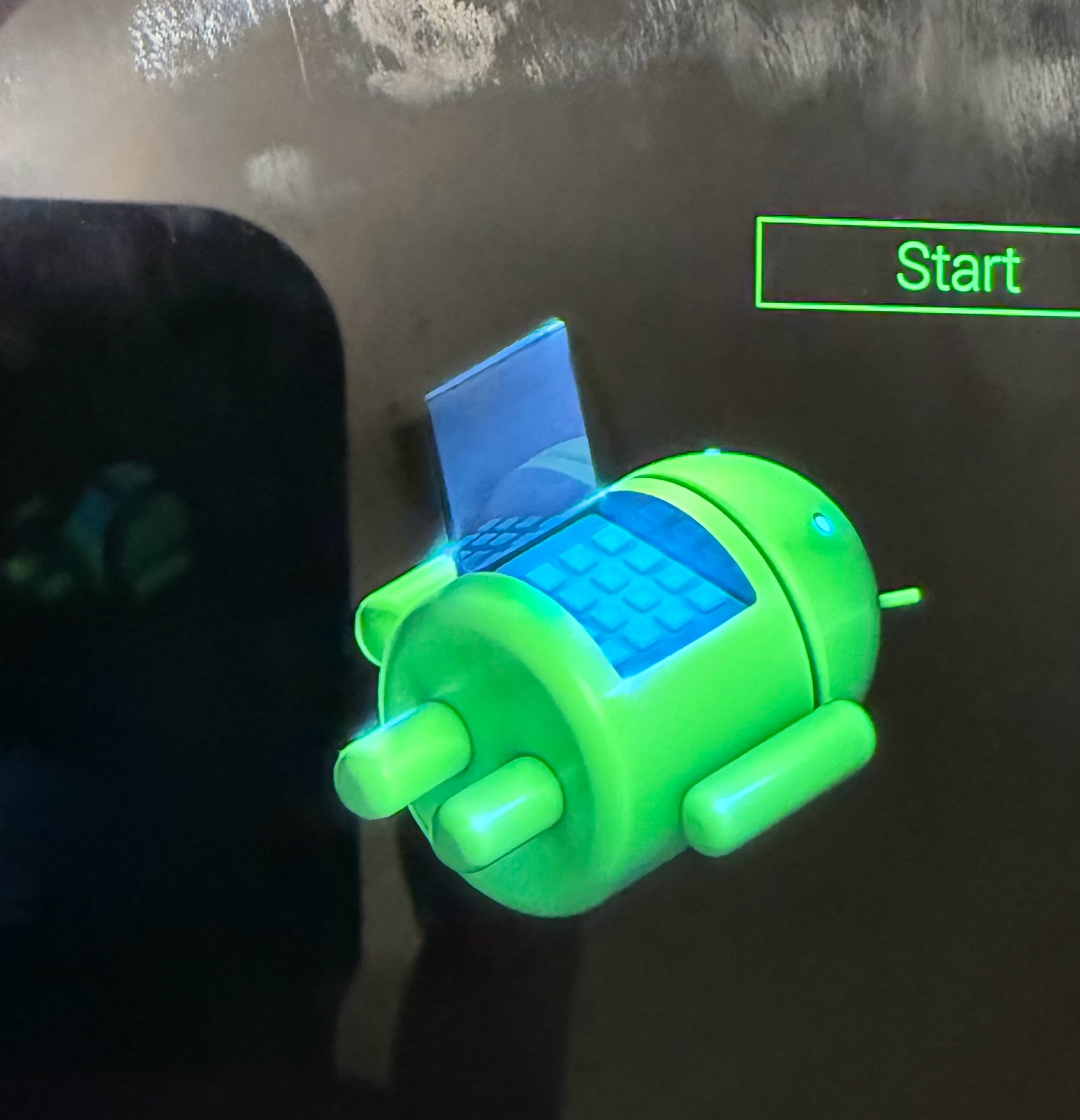
fastboot devices should show the phone now (adb devices won’t). From there, you run fastboot flashing unlock to actually unlock it.
Next step is to install pmbootstrap on my computer, straight forward enough thanks to uv[footnote 2]. pmbootstrap init and pmbootstrap install run fine, and I mostly follow the defaults at each prompt.
After that, you can run pmbootstrap flasher flash_rootfs (and also pmbootstarp flasher flash_kernel?). At this point, it’s supposedly done, and you can ssh in to the device when it’s plugged into your computer, but I cannot get this part to work. It doesn’t show up when I see what IP addresses I’m connected to with ip a, and it just shows the Google logo the whole time. Idk why, I just seem to be at an impasse. I initially tried using the console UI for Postmarket, and thought that maybe a different UI would show more information, so I tried again with the buffyboard UI instead. No luck. Discovered on a different page of the Postmarket OS wiki that I should be running pmbootstrap chroot fastboot reboot after installing to make sure everything wrote correctly, but no change, still a mystery Google screen.
Conclusion?
Idk. I’ll probably recycle the Moto X and trade in the Pixel 3 (where it will probably also be recycled). I probably should with the Nexus too, but idk. There’s a reason I never got into hardware; it’s inscrutible and you hit hard walls that I just don’t seem to with software. Bummer of an ending.
-
Note: the order of this article is not the order in which I tried these phones. I spend a very confused 30 minutes trying to figure out why it wasn’t working on the Nexus before realizing I had to unlock the bootloader first. [go back to reference]
-
Outside the scope of this article, but
uvis the closest to “just working” that I’ve ever seen the Python ecosystem get. Fairly refreshing, and makes me sad every time I have to interact withpip. [go back to reference]